Your Apps page shows a card for every app. The apps you've installed come first. Below them, under Ready to add, is a card for each app you haven't installed yet. Before you've installed anything, that section is called Install your first app.
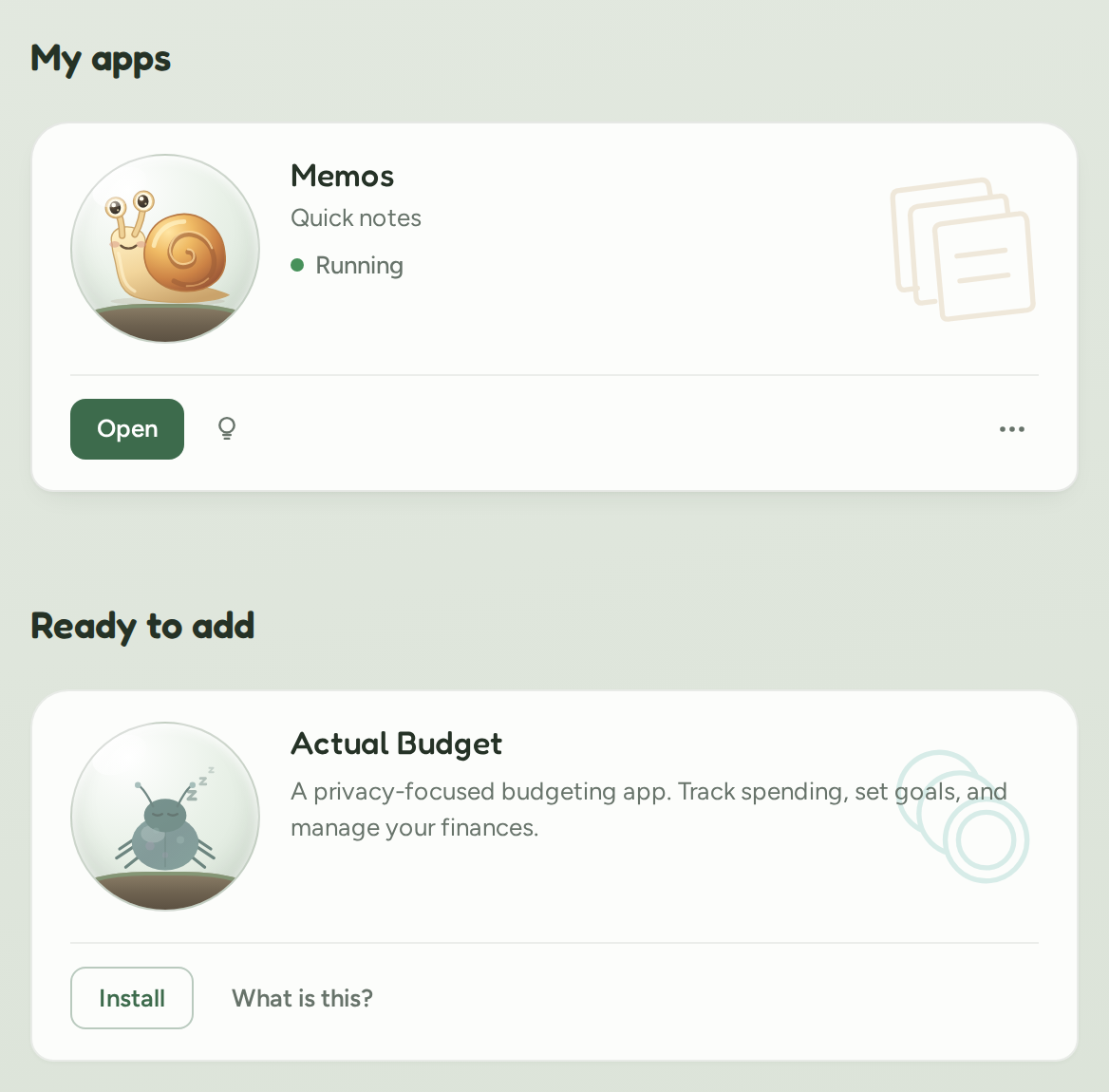
Only the account holder can install apps. Household members don't see the Ready to add section, so if you're a member, let the account holder know which app you'd like.
Install an app
- Find the app's card under Ready to add. To read about the app first, press What is this? on its card.
- Press Install.
The card moves up with your other apps and says Hatching while Terrarium sets the app up. That usually takes less than three minutes, and a short guide to the app opens while you wait.
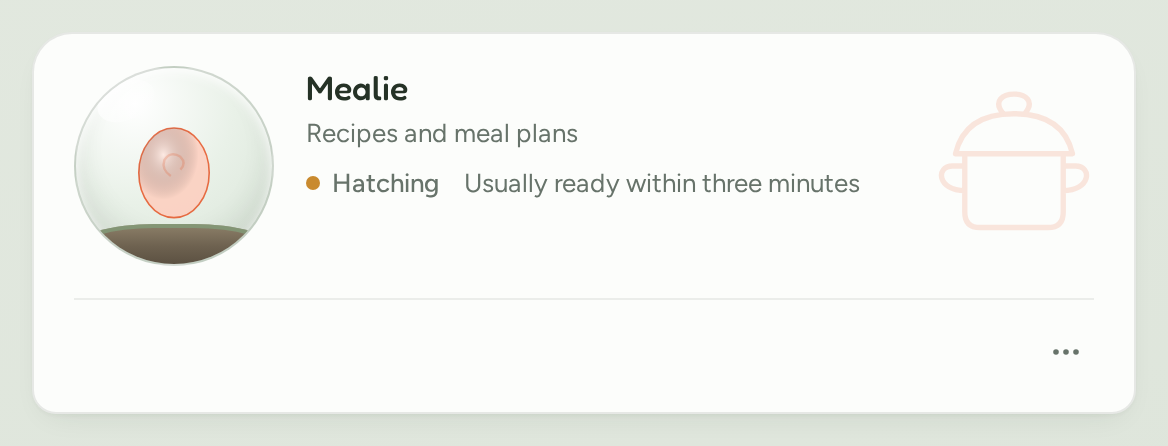
You don't need to refresh the page. The card changes on its own when the app is ready, and then you can open it.
A few apps ask you to choose a password before they install, because you'll use it to connect phone apps:
- Navidrome and FreshRSS sign you in with your Terrarium username, so you only choose a password.
- Audiobookshelf asks for a username and a password for its own account. You can reuse your Terrarium password if you like.
If you uninstalled the same app in the last 30 days, Terrarium asks whether to restore it or start fresh. See Uninstall an app, and get it back.
If the card says Error instead of becoming ready, see When an app needs attention.